
AirCall Cheat Sheet
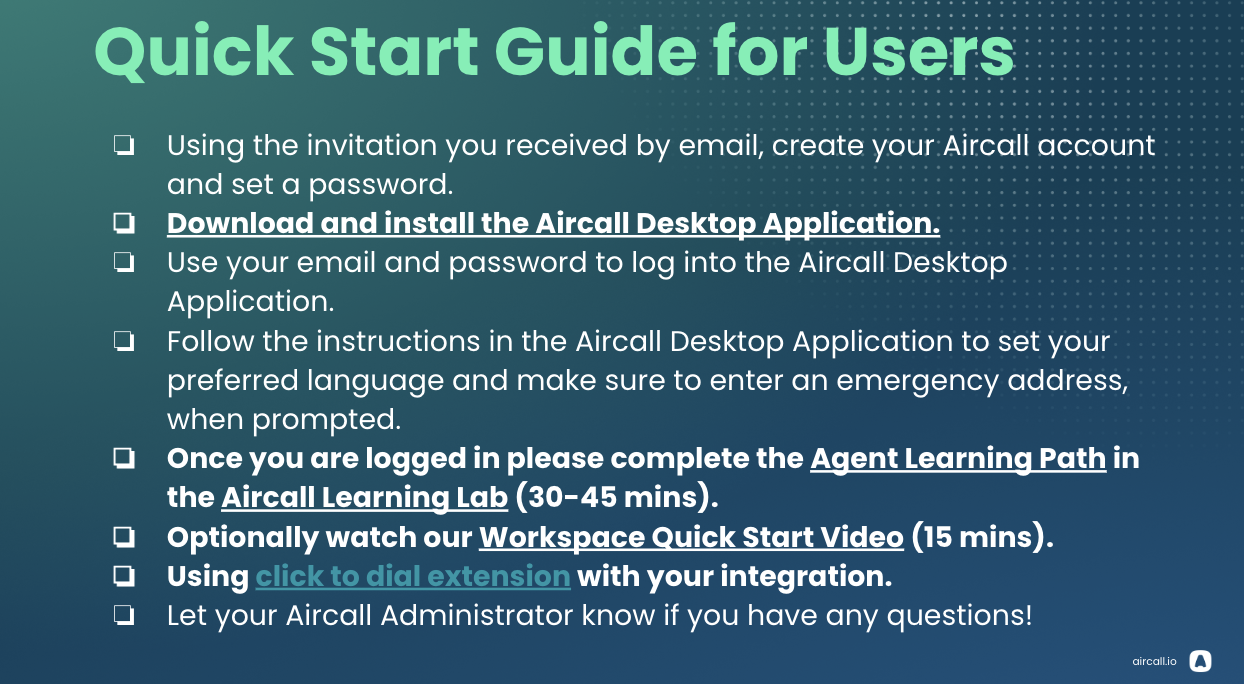
Aircall Cheat Sheet — Claimable Support Team
This guide covers how we use Aircall for customer support calls, including required compliance steps and best practices.
Outgoing Calls
How to place a call
- In the desktop, mobile, or browser app, click “Start a Conversation”.
- Enter the phone number and choose Call or Text.
- Help Scout dialing integration is coming soon.
- Important: Caller ID approval is still pending. For now, it’s best to proactively share the number you’re calling from, as calls may appear as unknown or spam.
Required opening script
Upon pickup, say:
“Hi, this is [Name] from Claimable. Just a quick heads-up before we begin—this call will be recorded for quality and compliance.”
Recording
- Once the caller acknowledges (e.g., “okay”), press Record.
- If the caller objects:
- Do not record
- Clearly note the objection in the Aircall conversation notes
After the call
- Tag the conversation using the appropriate pre-set tags
- Add any relevant notes (context, urgency, follow-up needed)
Incoming Calls
All Claimable numbers are set up with the same default flow. You can adjust your hours and routing in your personal Aircall settings (Go to **Aircall Web App Dashboard: Numbers)**.
- A caller dials your number and hears the recording disclosure message
- Call routing depends on office hours:
During Office Hours
- Calls ring through to your phone
- If unanswered, the call forwards to voicemail with a pre-set message
- You are responsible for monitoring voicemail and returning calls
- Once you answer, call will automatically record. You can stop the recording.
Outside Office Hours
- Calls go directly to voicemail
- You will not receive after-hours calls unless you change your hours
Tips & Best Practices
-
🎥 Watch the 15-minute Aircall training video (you can speed it up):
https://www.loom.com/share/accd6071afd24784b605d93c565e7b43?sid=2a7176e3-9475-4bff-98c2-5f6f4f1e26ba
-
To make calls, you must download one of the apps: mobile, desktop and/or browser
📊 The Aircall Web App Dashboard is where recordings are pulled from and workflows and number settings are changed (not the desktop/mobile/browser apps)
- Go to Analytics to export recordings
-
Go to Numbers to change your number’s setting (hours, flows, etc)
All numbers have been registered with major carrier registries
- Caller ID has been requested but may take time to fully approve
-
Until then, calls may appear as “Likely Spam” instead of “Claimable”
🔗 Help Scout is integrated with Aircall
- Conversations will appear in Help Scout as well (and button to open app coming)
- Learn more: https://aircall.io/call-center-software-integrations/helpscout/
- Note: These states require all parties to consent to record - all other states don’t: California, Connecticut, Florida, Illinois, Maryland, Massachusetts, Michigan, Montana, New Hampshire, Pennsylvania, Washington*
If a Caller Asks Why We Record Calls
Use one of the following approved explanations:
-
Primary explanation
“We record calls because some medication programs require us to review conversations for any potential adverse events related to active medications. This helps protect patient safety and ensures we meet regulatory requirements.”
-
Short version
“Recording allows us to review calls for any medication safety issues we’re required to report.”
-
Reassurance
“These recordings are used only for compliance and quality purposes and are handled securely.”